Nightingale
Karaoke from any song in your music library, powered by neural networks.
Nightingale scans your music folder, separates lead vocals from instrumentals using the UVR Karaoke model (or Demucs), transcribes lyrics with word-level timestamps via WhisperX, and plays it all back with synchronized highlighting, pitch scoring, key/tempo controls, profiles, and dynamic backgrounds.
Ships as a single binary. No manual installation of Python, ffmpeg, or ML models required — everything is downloaded and bootstrapped automatically on first launch.

Key Features
- Stem Separation — isolates lead vocals from instrumentals
- Word-Level Lyrics — automatic transcription with alignment, LRCLIB matches, or your own timed LRC / Enhanced LRC and plain lyrics
- CJK Lyrics — Japanese / Chinese / Cantonese / Korean songs get per-character forced alignment and romanized readings (Hepburn, pinyin, Jyutping, Revised Romanization) above each token
- Pluggable ASR — Whisper (default) or Parakeet v3 (experimental, ~25 European languages)
- UltraStar Deluxe Songs (experimental) — drop USDX folders into your library and play them with their built-in pitch + lyric data
- Pitch Scoring — real-time microphone input with star ratings
- Key & Tempo Shifts — adjust analyzed songs to better fit your voice
- Profiles — per-player score tracking
- Video Files — use video files with synchronized background playback
- Audio-Reactive Backgrounds — 10 GPU shaders that react to your mic, 5 Pixabay video flavors, source-video for video files
- Song Browser + Bulk Tools — switch between table and artwork-grid views, sort the table by multiple columns, and run analysis, metadata refresh, realignment, or cache actions across the current filtered list
- Sidebar Filters + Playlists — combine search with artist, album, playlist, analysis-status, and lyric-source filters, and browse existing folder/Plex/Jellyfin/Navidrome playlists
- Playback Queue + Session Mode — build a set list, manage what plays next, and keep the menu available while playback runs in a dedicated window or browser tab
- Custom Playback Layout — place lyrics at the top, center, or bottom and left, center, or right; scale lyrics and the pitch graph independently from 50–250%
- Mic Monitoring + Setup Tests — optional live mic monitoring with adjustable gain (0–200%), latency calibration, recording/playback testing, and Windows ASIO support
- Flexible Storage — split cache, videos, models, and vendor tools into separate folders
- Gamepad + Touch Support — full gamepad navigation and touch playback controls
- Self-Contained — zero manual dependency setup
Supported Platforms
| Platform | Target |
|---|---|
| Linux x86_64 | x86_64-unknown-linux-gnu |
| Linux aarch64 | aarch64-unknown-linux-gnu |
| macOS ARM | aarch64-apple-darwin |
| macOS Intel | x86_64-apple-darwin |
| Windows x86_64 | x86_64-pc-windows-msvc |
Getting Started
Download
| Platform | Format | Architectures |
|---|---|---|
| Linux | .deb, .rpm | x86_64, ARM (arm64) |
| macOS | .dmg | Apple Silicon, Intel |
| Windows | Installer .exe, .msi | x86_64 |
Download the latest version from the Releases page.
Supported audio formats: .mp3, .flac, .ogg, .opus, .wav, .m4a, .aac, .wma.
Supported video formats: .mp4, .mkv, .avi, .webm, .mov, .m4v.
UltraStar Deluxe songs (.usdx, plus .txt files whose contents look like USDX) are also picked up automatically and bypass the analyzer pipeline entirely. See UltraStar Deluxe for the supported tags and folder layout.
macOS: Removing the Quarantine Flag
macOS automatically adds a quarantine attribute to files downloaded from the internet. Since Nightingale is not signed with an Apple Developer ID, Gatekeeper will block it with a message like “app is damaged and can’t be opened” or “Apple cannot check it for malicious software”.
To fix this, remove the quarantine attribute after moving the Nightingale.app to Applications:
xattr -cr /Applications/Nightingale.app
This tells macOS to clear (-c) all extended attributes recursively (-r) from the app bundle, which removes the com.apple.quarantine flag that triggers Gatekeeper. The app itself is safe — it’s just not code-signed.
First Launch
On first launch, Nightingale will guide you through setup:
- Choose data folder — select where cache, models, videos, vendor tools, and the library database are stored. After setup, Settings can split cache, videos, models, and vendor tools into separate folders.
- Downloads ffmpeg — needed for audio/video processing
- Downloads uv — Python package manager
- Installs Python 3.10 — via uv, isolated from your system Python
- Creates virtual environment — with PyTorch, WhisperX, Demucs, and UVR models
- Downloads ML models — stem separation and transcription models
- Pre-downloads video backgrounds — Pixabay videos for the first session
This process takes a few minutes and shows a progress screen. After setup completes, Nightingale is ready to use.

Adding Music
When prompted, select your music folder. Nightingale scans it for supported audio and video files. You can change this folder later from the sidebar actions menu.
Browsing and Playing Songs
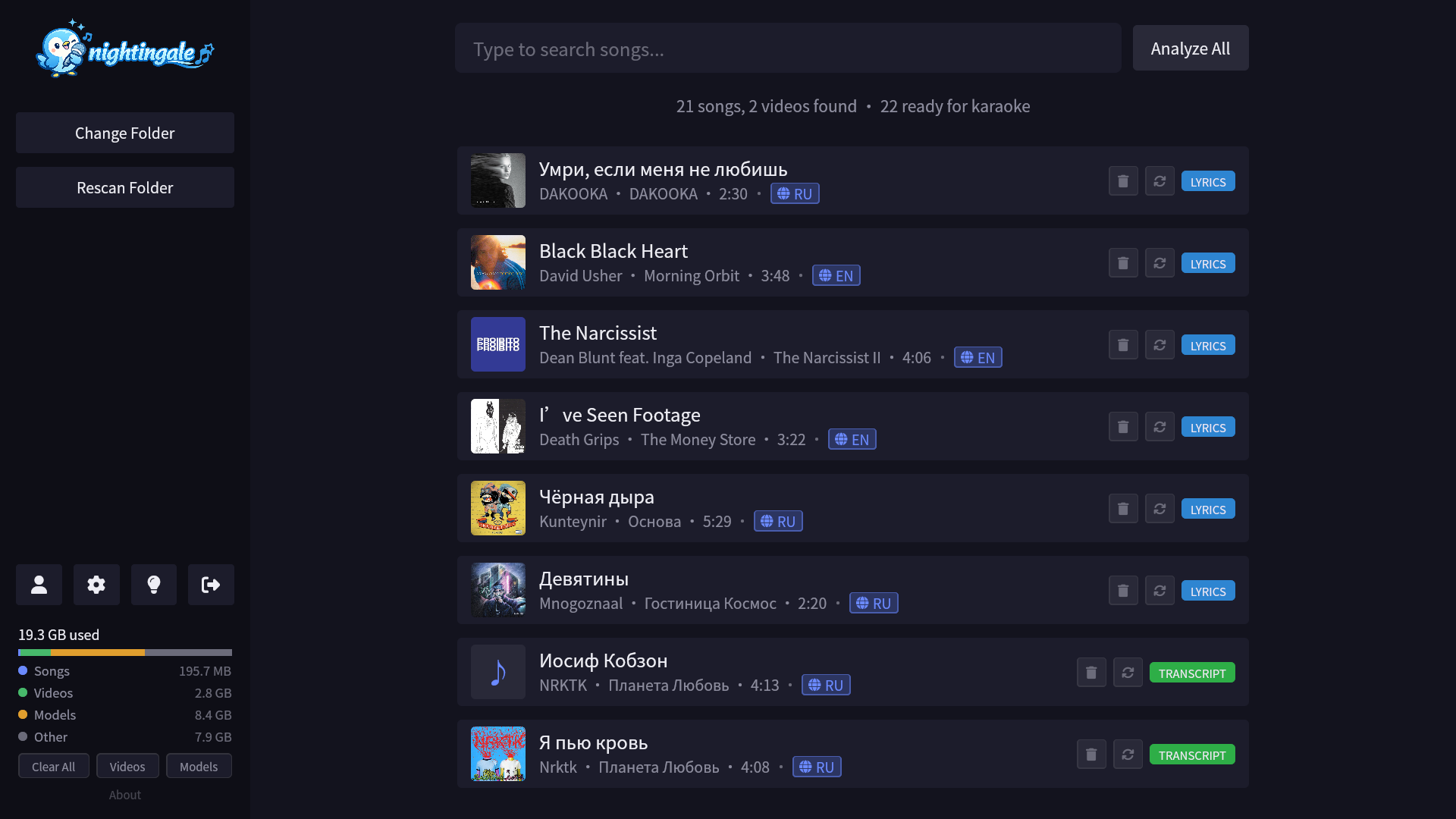
Use the song-list toolbar to switch between a compact table and an artwork grid. Search combines with sidebar selections and the toolbar’s analysis-status and lyric-source filters, so you can narrow the library without losing context.
Select a song to open its details sidebar before playback. From there you can review the cover, metadata, and analysis state; adjust key and tempo; edit or provide lyrics; run analysis actions; play immediately; or add the song to the playback queue. Open the queue from the toolbar to see what is next, remove individual songs, start the queue, or clear it.
Choose Settings → Playback → Session mode to open playback in a dedicated desktop window or browser tab while the menu remains available for queue management. The same settings page has a live preview for lyric placement and independent lyric and pitch-graph scaling.
Analysis
Before most songs can be played as karaoke, they need to be analyzed:
- Select a song from the library to open its details sidebar.
- Start analysis from the available action.
- Nightingale separates stems, finds or transcribes lyrics, and aligns their timing.
- Results are cached — subsequent plays are instant.
Timed LRC / Enhanced LRC and UltraStar songs can skip some or all of this pipeline. See Lyrics & Transcription and UltraStar Deluxe.
Use the song-list actions menu to analyze songs, cancel active analysis, refresh metadata, realign lyrics, reanalyze, or clear cached results across the current filtered list. You can also enable Settings → Analysis → Auto-analyze to queue newly discovered unanalyzed songs after each scan. Bulk actions respect the active search, sidebar selection, status filter, and lyric-source filter.
Updating
On macOS and Windows, Nightingale checks for new releases once at launch. When one is available:
- The sidebar avatar grows a small green dot.
- The Update entry in the sidebar dropdown menu also shows the badge and opens a dialog with the version, release date, and notes.
- Click Install & Restart. The signed bundle downloads (with a progress bar), installs, and the app relaunches.
Platform notes:
- macOS: the bundle is replaced in place and the app relaunches.
- Windows: the installer runs in
passivemode — a small progress window appears, the app exits, and it comes back automatically once the install finishes.
Linux
The Linux build ships without the in-app updater. The Update entry is still in the sidebar menu, but instead of fetching a bundle it opens a dialog that explains this and gives you an Open GitHub Releases button. Pick the .deb or .rpm for your distro from the Releases page and install it the usual way.
There is no update badge on the sidebar avatar on Linux.
If the macOS or Windows dialog reports an error, see Troubleshooting → Updates.
Force Re-setup
If something goes wrong with setup or dependencies, open the sidebar actions menu and select Re-run Setup. If you only need to move cache/models/videos/vendor files, use Settings so Nightingale migrates existing contents and avoids stale paths.
Controls
Nightingale supports keyboard, gamepad, and touch input. The UI adapts to your input method automatically.
Navigation
| Action | Keyboard | Gamepad |
|---|---|---|
| Move | Arrow keys | D-pad / Left stick |
| Confirm / Select | Enter | A (South) |
| Back / Cancel | Escape | B (East) / Start |
| Switch panel | Tab | — |
| Search songs | Type to filter | — |
Playback
| Action | Keyboard | Gamepad |
|---|---|---|
| Pause / Resume | Space | Start |
| Exit to menu | Escape | B (East) |
| Toggle guide vocals | G | — |
| Guide volume up/down | + / - | — |
| Cycle background theme | T | — |
| Cycle video flavor | F | — |
| Toggle microphone | M | — |
| Next microphone | N | — |
| Toggle mic monitoring | R | — |
| Toggle fullscreen | F11 | — |
| Skip Intro / Skip Outro | On-screen buttons | A (South) |
Touch devices show on-screen playback controls for core actions instead of relying on keyboard shortcuts.
Key and tempo are adjusted from the song details sidebar after a song has been analyzed. Playback mode, lyric placement and scale, pitch-graph scale, preferred microphone, mic latency compensation, and analysis defaults live in Settings.
Gamepad Notes
- Full navigation of menus, song selection, and settings via gamepad
- D-pad and left stick both work for navigation
- Face buttons map to confirm (A/South) and cancel (B/East)
Settings Navigation
Settings use the same navigation model: move between General, Playback, and Analysis tabs, change sliders/selects/buttons, and close or restore defaults without a mouse.
Keyboard & Gamepad Reference
This page provides a complete reference of all keyboard shortcuts and gamepad mappings.
Menu Navigation
In the main menu, sidebar, and settings screens:
- Arrow keys / D-pad: Move focus between items
- Enter / A button: Select the focused item
- Escape / B button: Go back or close overlays
- Tab: Switch between sidebar and main content area
- Type any text: Filter/search the song list
- Actions button: Open bulk actions for the current filtered list
During Playback
While a song is playing:
- Space / Start: Pause or resume playback
- Escape / B: Exit back to the song menu
- G: Toggle guide vocals on/off
- + / -: Adjust guide vocal volume
- T: Cycle through background themes (shaders, video, source)
- F: Cycle through Pixabay video flavors (Nature, Underwater, Space, City, Countryside)
- M: Toggle microphone for pitch scoring
- N: Switch to the next available microphone
- R: Toggle mic monitoring (live monitor during playback)
- F11: Toggle fullscreen
Song List and Details Controls
Use the song-list toolbar to switch between table and grid views, filter by analysis status or lyric source, open bulk actions, and open the playback queue. Select a row or card to open its details sidebar before playback.
For an analyzed song, the details sidebar provides:
- Play: start playback with the selected settings
- Add to queue: save the current key and tempo choices in the set list
- Tempo: adjust playback speed in small steps
- Key: transpose to a more comfortable vocal range
- Lyrics and language actions: edit or replace lyrics and correct the song language
- Analysis actions: start, cancel, retry, or refresh available analysis steps
In table view, select a sortable column header to add it as the next sort priority. Select it again to switch from ascending to descending, then once more to remove it. Priority numbers beside active headers show the order used and remain saved between sessions.
Bulk actions apply to the current filtered list. Available actions include analysis and cancellation, metadata refresh, lyric realignment, reanalysis, and cache deletion.
Playback Queue and Session Mode
Open Playback Queue from the song-list toolbar to review the set list. The first song is marked Next up. You can remove individual songs, choose Play Queue, or clear the full queue after confirmation.
In Settings → Playback, choose Session mode to keep the menu available while playback runs in a dedicated desktop window or browser tab. Classic mode replaces the menu with playback in the current window.
Skip Buttons
During playback, on-screen skip buttons appear for intro and outro sections. These can be activated with Enter/A or clicked.
How It Works
Nightingale’s pipeline transforms any audio or video file into a karaoke experience through several stages.
Pipeline Overview
flowchart TD
    A["🎵 Audio or video file"] --> B["UVR Karaoke / Demucs"]
    A2["🎼 USDX bundle (.txt / .usdx)"] --> E["Tauri App (Rust + React)"]
    B --> |"vocals + instrumental"| C["LRCLIB"]
    C --> |"synced lyrics if available"| D["WhisperX (large-v3) or Parakeet v3 (exp.)"]
    D --> |"word-level alignment, CJK readings"| E
    E --> F["🎤 Plays instrumental + synced lyrics\nwith pitch scoring, key/tempo controls,\nmic monitoring, and audio-reactive backgrounds"]
USDX bundles bypass stem separation and transcription entirely — the .txt is parsed into a transcript JSON shaped exactly like the analyzer cache, so playback reuses the existing pipeline. See UltraStar Deluxe.
Analyzer Server
The analyzer is a long-lived Python process that Nightingale spawns once on startup and talks to over a token-authenticated loopback TCP socket using newline-delimited JSON (NDJSON). Per-song startup costs (model load, CUDA init, Python imports) are paid once at boot, after which analyze requests stream progress events and complete with done or error messages. This makes back-to-back analyses noticeably faster than the previous per-song subprocess model.
Caching
Analysis results are cached in your configured data folder (cache/) using blake3 file hashes. Re-analysis only happens if the source file changes, if you trigger it manually, or when creating shifted key/tempo variants.
Hardware Acceleration
The Python analyzer uses PyTorch and auto-detects the best backend:
| Backend | Device | Notes |
|---|---|---|
| CUDA | NVIDIA GPU | Fastest |
| MPS | Apple Silicon | macOS; WhisperX alignment falls back to CPU |
| CPU | Any | Slowest but always works |
The UVR Karaoke model uses ONNX Runtime and enables CUDA acceleration automatically on NVIDIA GPUs, or CoreML on Apple Silicon.
A song typically takes 2–5 minutes on GPU, 10–20 minutes on CPU.
Stem Separation
Nightingale separates lead vocals from instrumentals so you can sing along to the backing track.
Models
UVR Karaoke (Default)
The UVR (Ultimate Vocal Remover) Karaoke model is optimized specifically for karaoke use. It preserves backing vocals in the instrumental track, giving a more natural karaoke experience. Uses ONNX Runtime for inference, with automatic CUDA (NVIDIA) or CoreML (Apple Silicon) acceleration.
Demucs
Demucs by Facebook Research provides an alternative separation model. You can switch between models in the settings.
Video Files
When processing video files (.mp4, .mkv, etc.), Nightingale first extracts the audio track using ffmpeg, then runs stem separation on the extracted audio. During playback, Nightingale uses the source video when available and falls back to a playable converted video when needed.
Guide Vocals
After separation, you can control how much of the lead vocals bleed through the instrumental:
- Toggle: Press
Gto turn guide vocals on/off - Volume: Press
+/-to adjust the guide vocal level
This is useful for learning new songs or for singers who want a reference pitch.
UltraStar Bundles Skip Stem Separation
UltraStar Deluxe songs that ship with #VOCALS and #INSTRUMENTAL files are used directly during playback — no stem separation is run. If only #AUDIO is provided, Nightingale falls back to running the configured separator on that file. See UltraStar Deluxe for the supported tags.
Lyrics & Transcription
Nightingale provides word-level synchronized lyrics through two sources.
LRCLIB
LRCLIB is queried first for existing synced lyrics. When a match is found, lyrics are used directly without needing transcription. This is faster and often more accurate for well-known songs.
WhisperX Transcription
When LRCLIB doesn’t have lyrics for a song, Nightingale runs ASR over the isolated vocals to:
- Transcribe the audio into text
- Align each word to precise timestamps
This produces word-level timing information that drives the karaoke highlighting during playback.
Choosing the ASR Engine
Two ASR engines are available, switchable from Settings → Analysis:
Whisper (default)
Uses WhisperX with the large-v3 model. Broad language coverage, robust on noisy or multilingual material. This is the default and the recommended choice for most users.
Parakeet v3 (experimental)
Parakeet TDT 0.6B v3 by NVIDIA. Smaller and noticeably faster than Whisper large-v3. Two interchangeable backends are picked automatically based on your runtime device:
- CUDA → NVIDIA NeMo (
nemo_toolkit[asr]) - CPU / MPS → ONNX Runtime via
onnx-asr
Parakeet is supported for the following 25 European languages: Bulgarian, Croatian, Czech, Danish, Dutch, English, Estonian, Finnish, French, German, Greek, Hungarian, Italian, Latvian, Lithuanian, Maltese, Polish, Portuguese, Romanian, Russian, Slovak, Slovenian, Spanish, Swedish, Ukrainian.
If Parakeet is selected for an unsupported language, or it produces no usable words for a song, Nightingale falls back to Whisper for that file. Word-level alignment after Parakeet still uses wav2vec2 forced alignment, so timing accuracy is comparable.
Choosing the Forced-Alignment Backend
Whenever word timestamps are derived from wav2vec2 forced alignment — that is, the Whisper transcription path and the LRCLIB lyrics-alignment path — you can pick how the alignment itself is computed from Settings → Analysis → Forced alignment:
WhisperX (default)
WhisperX’s built-in aligner. Emissions come from wav2vec2, then a Viterbi decode + backtrack runs in pure Python on the CPU (even when a GPU is present). Reliable and well-tested; this is the default.
GPU forced alignment (experimental)
Replaces only the Viterbi core with torchaudio.functional.forced_align — a C++/CUDA CTC alignment kernel — while keeping everything else identical (model, dictionary, wildcard handling, character/word/sentence assembly, and the CJK per-character path). It runs on CUDA GPUs and, on Apple Silicon, on the optimized CPU kernel (torchaudio has no MPS kernel), which is still far faster than WhisperX’s Python decode. It also speeds up LRCLIB lyrics alignment.
If the kernel fails for a segment (for example the audio is too short for the number of characters) it resorts to that segment’s original bounds, and if the backend errors it automatically falls back to WhisperX — so switching it on is safe. This backend does not affect the Parakeet native-timestamp path, which skips forced alignment entirely.
Qwen aligner (experimental)
Replaces wav2vec2 forced alignment entirely with Qwen3-ForcedAligner-0.6B (Apache-2.0), a non-autoregressive model that predicts a start/end timestamp for every token in a single forward pass from the audio and transcript together — no CTC, no phonetic conversion. It tokenizes the display text itself (Japanese via nagisa, Korean via soynlp, Chinese per character, space-delimited words otherwise) and drops punctuation, so Nightingale only attaches the romanized reading on top; the elaborate wav2vec2 CJK reattribution path is not needed here.
Notes:
- Languages — supports 11: Chinese, English, Cantonese, French, German, Italian, Japanese, Korean, Portuguese, Russian, Spanish. Any other language automatically falls back to the wav2vec2 path.
- Devices — runs on CUDA (bf16), and unlike the other backends also on Apple Silicon MPS (falling back to CPU only where an op is unsupported).
- Length — the model handles up to ~5 minutes of audio per pass. The Whisper path aligns each segment against its own slice, so full songs are fine; a single over-long lyrics pass falls back to wav2vec2.
- Safety — any failure (unsupported language, over-length audio, OOM after a CPU retry, load error) falls back to WhisperX. The model weights (~1.8 GB) download on first use. Does not affect the Parakeet native-timestamp path.
Language Support
The language is auto-detected from the audio. You can override it per song from the song-list controls. Nightingale includes Noto Sans CJK fonts for Chinese, Cantonese, Japanese, and Korean lyrics.
CJK Languages
Japanese (ja), Chinese (zh), and Cantonese (yue) take a dedicated forced-alignment path because their wav2vec2 alignment models are character-level CTC checkpoints, not word/space-segmented. Nightingale:
- Transcribes with Whisper or Parakeet as usual.
- Cleans the text down to the alignment vocab (drops punctuation and other out-of-vocab symbols).
- Aligns per character with a wav2vec2 model:
- Japanese:
vumichien/wav2vec2-large-xlsr-japanese-hiragana— feeds fugashi-derived hiragana readings into a hiragana-vocab CTC model. This sidesteps the dense kanji vocabulary of the default checkpoint and matches the acoustic prior of natural Japanese speech far better. - Chinese and Cantonese:
jonatasgrosman/wav2vec2-large-xlsr-53-chinese-zh-cnwith jieba tokenization for display. Cantonese is written in the same Han characters, so it reuses the Chinese CTC model and per-character grouping; only its romanized reading differs.
- Japanese:
- Reattributes per-character timing back onto fugashi (ja) or jieba (zh/yue) tokens for word-level highlighting.
Korean (ko) uses kresnik/wav2vec2-large-xlsr-korean, which is already eojeol-segmented and bypasses the character-retokenization step.
For all four languages, every word is annotated with a romanized reading that appears above the original token during playback:
- Japanese — Hepburn romaji via pykakasi
- Chinese — tone-mark pinyin via pypinyin
- Cantonese — Jyutping via ToJyutping
- Korean — academic Revised Romanization via hangul-romanize
Heavy CJK modules are imported lazily on first use, so non-CJK songs don’t pay the startup cost.
Editing & Providing Lyrics
Open a non-USDX song’s Actions button and choose Edit lyrics (ready songs) or Provide LRC (un-analyzed songs). The dialog has two tabs:
- Edit tab — a textarea for the lyrics. Paste timed LRC / Enhanced LRC (line- or word-level) to set timing directly and skip transcription, or paste plain lyrics to run alignment against the audio. For un-analyzed songs an Audio choice also appears: separate stems (karaoke) or play over the original mix.
- LRCLIB matches tab — visible when LRCLIB returns candidates. Each shows track / artist / album / duration and the lyric body; carousel through them and pick Use LRC (synced candidates, applied as-is) or Use as plain text (runs alignment).
Timed LRC is written straight to the transcript with no ML pass. Skipping stem separation plays the song over its original mix with the guide control hidden; a quick key-detection pass still enables key/tempo shifts, and pitch scoring falls back to the original mix (less accurate). Saved lyrics replace the cached transcript for that song’s blake3 hash, so subsequent plays pick up the change immediately. CJK alignment paths are skipped on edits — the editor saves a flat per-line transcript and lets the alignment stage re-derive per-character timings on the next analyzer pass.
Highlighting
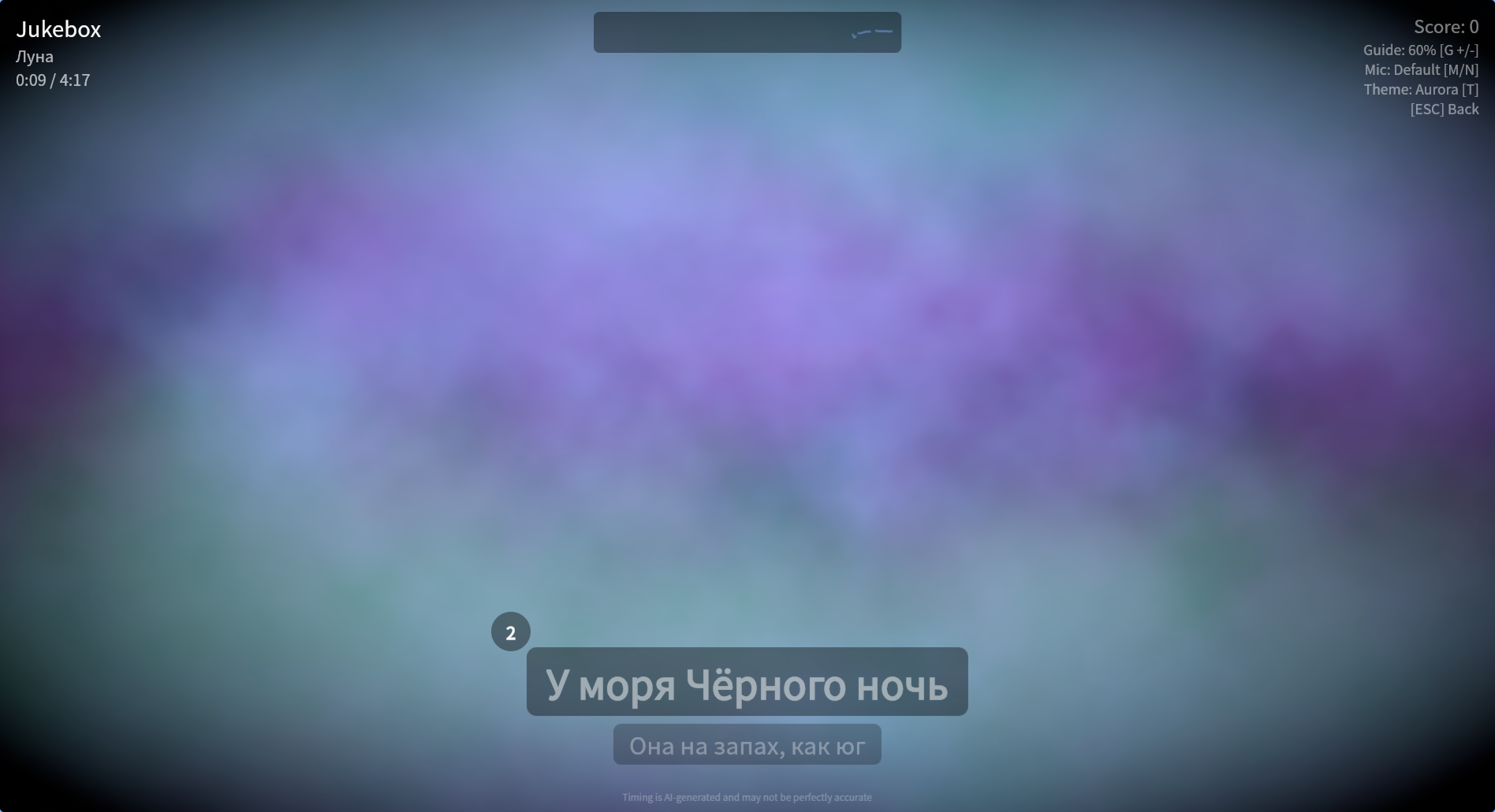
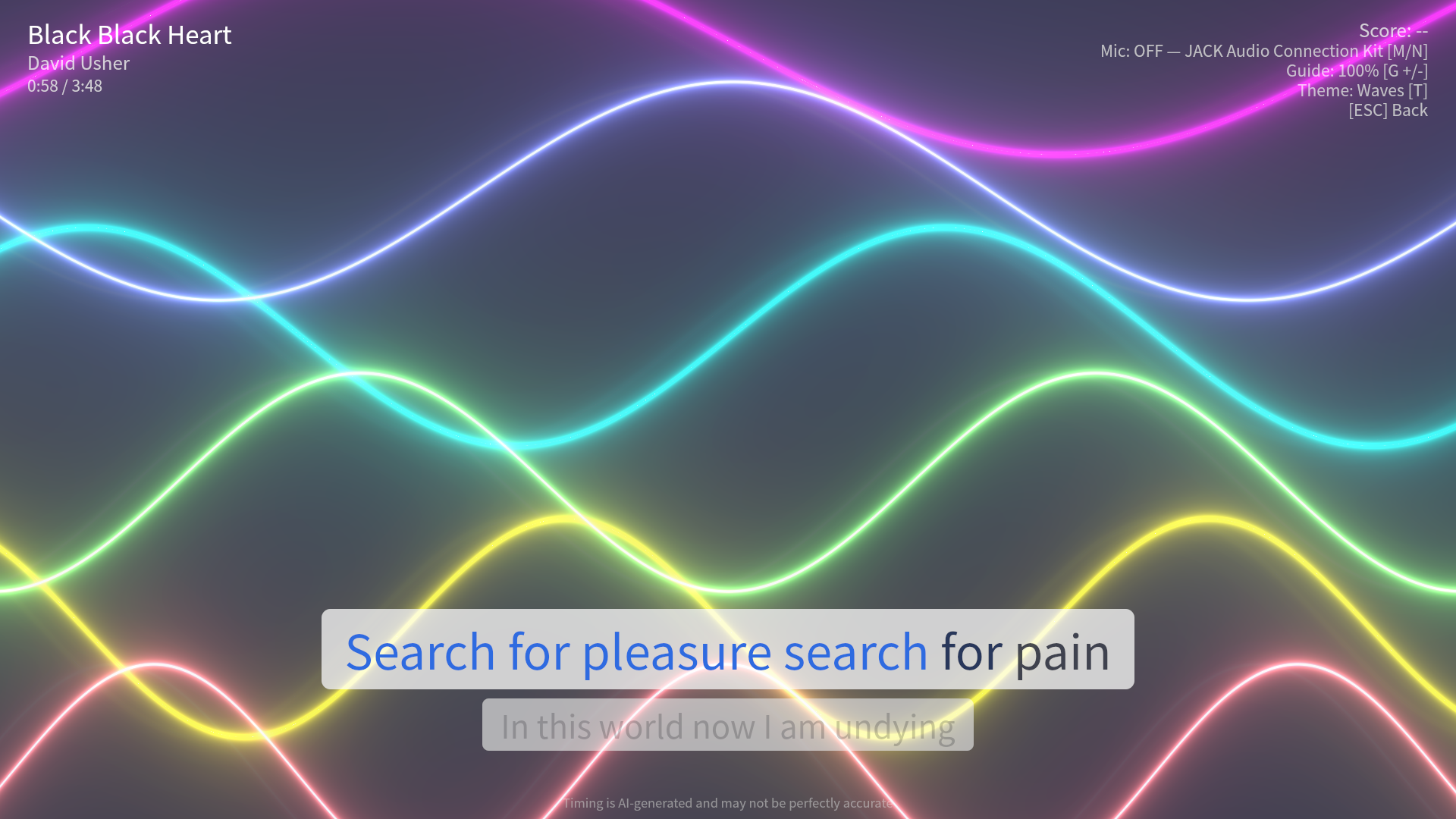
During playback, lyrics are displayed with word-by-word highlighting:
- Current word — highlighted in the accent color
- Sung words — shown in a completed state
- Upcoming words — shown in a dimmer color
- Next line — previewed below the current line
- Reading — for CJK songs, the romanized reading is shown above each token in a smaller weight
- Lyric gaps — during longer pauses between lyric lines, a compact countdown appears beneath the song details while a circular bubble counts down the final three seconds beside the upcoming line. Lines from the next lyric block are not previewed across an instrumental break.
UltraStar Deluxe
Nightingale can play UltraStar Deluxe songs directly from your library, using the pitch and lyric data shipped with each song instead of running its own analyzer. This support is experimental.
How songs are detected
The library scanner picks up two kinds of USDX files:
*.usdxfiles — always treated as USDX.*.txtfiles — only when the file’s contents look like a USDX header (so unrelated.txtnotes in your music folder are ignored).
Sibling media referenced from the file (#AUDIO, #MP3, #VOCALS, #INSTRUMENTAL, #VIDEO) are de-duped from the scan, so they don’t appear as standalone tracks alongside the USDX song.
Folder layout
A typical USDX bundle keeps every file in one folder:
my-songs/
└── Some Artist - Some Song/
    ├── song.txt
    ├── song.mp3        # referenced via #AUDIO / #MP3
    ├── song.vocals.mp3 # referenced via #VOCALS  (optional)
    ├── song.instr.mp3  # referenced via #INSTRUMENTAL (optional)
    ├── song.mp4        # referenced via #VIDEO (optional)
    └── cover.jpg       # referenced via #COVER (optional)
All sibling paths are resolved relative to the folder containing the .txt. If a referenced file is missing, the corresponding feature is skipped (e.g. no #VIDEO means no source-video background).
Supported tags
Nightingale reads the following header tags. Anything else is ignored:
| Tag | Required | Notes |
|---|---|---|
#TITLE | yes | Song title. |
#ARTIST | yes | Artist name. |
#AUDIO | yes* | Main audio file. #MP3 is accepted as a v1.0-style fallback when #AUDIO is absent. |
#BPM | yes | UltraStar quarter-note BPM. Comma or period decimal separators are both accepted. |
#GAP | no | Flat offset in milliseconds applied to every timestamp. |
#END | no | Optional end-time hint in milliseconds. |
#RELATIVE | no | When yes, line offsets accumulate via - separators. Both absolute and relative timing are supported. |
#VOCALS | no | Pre-separated vocals stem. When present, stem separation is skipped. |
#INSTRUMENTAL | no | Pre-separated instrumental. When present, stem separation is skipped. |
#VIDEO | no | Source video to use as the playback background. |
#COVER | no | Album/song cover image. |
#LANGUAGE | no | First entry in a comma-separated list is used. |
#EDITION | no | First entry in a comma-separated list is used. |
*Either #AUDIO or #MP3 must resolve to a real file.
Timing model
UltraStar’s #BPM counts quarter-note beats per minute, and a note beat is 1/4 of one of those — so seconds_per_note_beat = 60 / (BPM * 4). #GAP is a flat millisecond offset added to every timestamp. This matches the formula used by UltraStar Deluxe, Vocaluxe, and Performous, so files authored against any of those tools should play in sync.
Note kinds (: regular, * golden, F freestyle, R / G rap) are recognised by the parser, but pitch-bonus weighting is currently uniform across all of them.
How USDX songs flow through the pipeline
- The
.txtis parsed into a transcript JSON whose shape is identical to what the analyzer cache writes for non-USDX songs, so playback reuses the existing transcript and lyric path with no special-casing. - If
#VOCALSand#INSTRUMENTALare both provided, stem separation is skipped entirely. Otherwise, the configured separator runs on#AUDIOonce and the result is cached like any other song. - If
#VIDEOis set, it plays as the source background. The other shader and Pixabay backgrounds are still available withT. - Re-scanning the library does not re-parse unchanged USDX files; transcript synthesis is keyed off the file’s blake3 hash like every other cache.
Limitations
- USDX support is experimental. File a bug if you hit a song that doesn’t parse.
- Medley sections are not yet supported.
- Duet voice tracks (
P1/P2) are parsed as a single voice; per-singer scoring is not differentiated. - Encodings beyond UTF-8 and the most common Latin code pages may fail to decode cleanly.
- Songs missing any of the required tags (
#TITLE,#ARTIST,#AUDIO/#MP3,#BPM) are rejected at scan time.
Where to find songs
- usdb.animux.de — large community song database.
- usdx.eu/format — the format reference, useful if you want to author your own files.
Library Sources
Nightingale can build your karaoke library from a local folder, Plex Media Server, Jellyfin, or Navidrome. Use the Library buttons in the sidebar to choose one.
Only one source is active at a time. You can switch later without losing already-analyzed songs that point to the same audio.
| Source | Best for | Supports video? | What you enter |
|---|---|---|---|
| Folder | Music stored on this computer or drive | Yes | Folder path |
| Plex | Selected music libraries on a Plex Media Server | Associated music video clips | Hosted Plex sign-in, or PMS URL + token |
| Jellyfin | Music and videos on a Jellyfin server | Yes | Server URL, username, password |
| Navidrome | Music on Navidrome or another Subsonic server | No | Server URL, username, password |
Local folder
Choose a music folder and Nightingale scans it recursively.
Use this when your files are already on this computer, an external drive, or a mounted network share. Folder libraries support audio files, video files, and UltraStar Deluxe song folders.
To update the list after adding or removing files, rescan from the sidebar. Existing analysis is reused when the file has not changed.
See Getting Started for supported formats.
Plex Media Server
Use Plex when music lives on a local, LAN-only, shared, or remotely accessible Plex Media Server (PMS).
- Click the Plex button in the Library sidebar section.
- Choose Sign in with Plex. Nightingale opens Plex’s hosted authorization page and uses the resulting account access only to discover your available servers.
- Select a discovered PMS and one or more music libraries.
- Click Connect selected libraries.
For a LAN-only server, or when you do not want to use plex.tv discovery, choose Advanced: use a server URL and token. Enter the PMS URL itself (for example http://192.168.1.20:32400) and its token in separate fields. After connection, identity, health checks, library sync, metadata, covers, playlists, downloads, and streams all go directly to that saved PMS base URL. Normal operation does not require plex.tv, and media is never proxied through app.plex.tv.
Only explicitly selected Plex music sections are synced. Nightingale also imports playable clip items exposed by those music sections, but it does not ingest generic movie or TV libraries. Existing audio playlists are imported read-only. Original media is fetched lazily into Nightingale’s source cache for playback and analysis; associated video uses the authenticated, range-aware local proxy so the Plex token never appears in frontend media URLs or logs.
Plex’s hosted PIN v2 and account resource APIs are less completely documented than the PMS API. Nightingale implements the standard defensive flow and keeps the manual PMS URL + token path available if cloud authorization or discovery changes.
Jellyfin
Use Jellyfin when your music or music videos live on a Jellyfin server.
- Click the Jellyfin button in the Library sidebar section.
- Enter your server URL, username, and password.
- Click Test connection.
- Choose one or more music libraries.
- Click Connect.
After connecting, Nightingale lists songs and videos from the selected Jellyfin libraries. Cover art loads as needed. When you analyze or play a song that needs processing, Nightingale downloads the original media once into its local cache. Later analyses reuse that cached copy.
Connection status appears on the Jellyfin button:
- Green: server reachable.
- Amber: last check failed. Hover for details.
- Grey: still checking.
Navidrome / Subsonic
Use Navidrome when your music lives on a Navidrome or Subsonic-compatible server.
- Click the Navidrome button in the Library sidebar section.
- Enter your server URL, username, and password.
- Click Test connection.
- Click Connect.
Nightingale scans albums and songs from the server. Audio downloads only when a song is first analyzed, then stays in the local cache for reuse.
Navidrome sources are audio-only. Video items are not imported.
Playlists
Existing playlists appear in a read-only Playlists section in the sidebar. Nightingale imports playlists from Plex, Jellyfin, and Navidrome, while folder libraries discover .m3u, .m3u8, and .pls files recursively.
Playlist order is preserved. Relative paths in folder playlists are resolved from the playlist file’s directory, and entries that do not match songs in the active library are skipped. Rescan the library after changing playlist files or remote playlists.
Nightingale uses playlists for navigation only; creating or editing playlists remains in Plex, Jellyfin, Navidrome, or your playlist-file editor.
Switching sources
Connect a different source whenever you want to change libraries. Nightingale rescans and shows songs from the new source.
Your analysis cache stays on disk. If you return to a source later, songs with the same audio can reuse existing stems, lyrics, and other analysis files.
Passwords and tokens
Plex, Jellyfin, and Navidrome credentials are saved so Nightingale can reconnect next time. Nightingale never asks for a Plex username or password; it stores only the PMS token returned by hosted authorization or entered in the advanced flow.
Credentials are encrypted in config.json, but you still should not share that file. If you previously used an older build with plain-text credentials, Nightingale wraps them the next time it saves settings.
Pitch Scoring
Nightingale includes real-time pitch scoring to gamify the karaoke experience.
How It Works
- Microphone input — select your microphone and toggle it on with
M - Pitch detection — your vocal pitch is analyzed in real-time
- Comparison — your pitch is compared against the reference vocal track (or the original mix for songs analyzed without stem separation, where scoring is less accurate)
- Scoring — accuracy is tracked throughout the song
Star Ratings
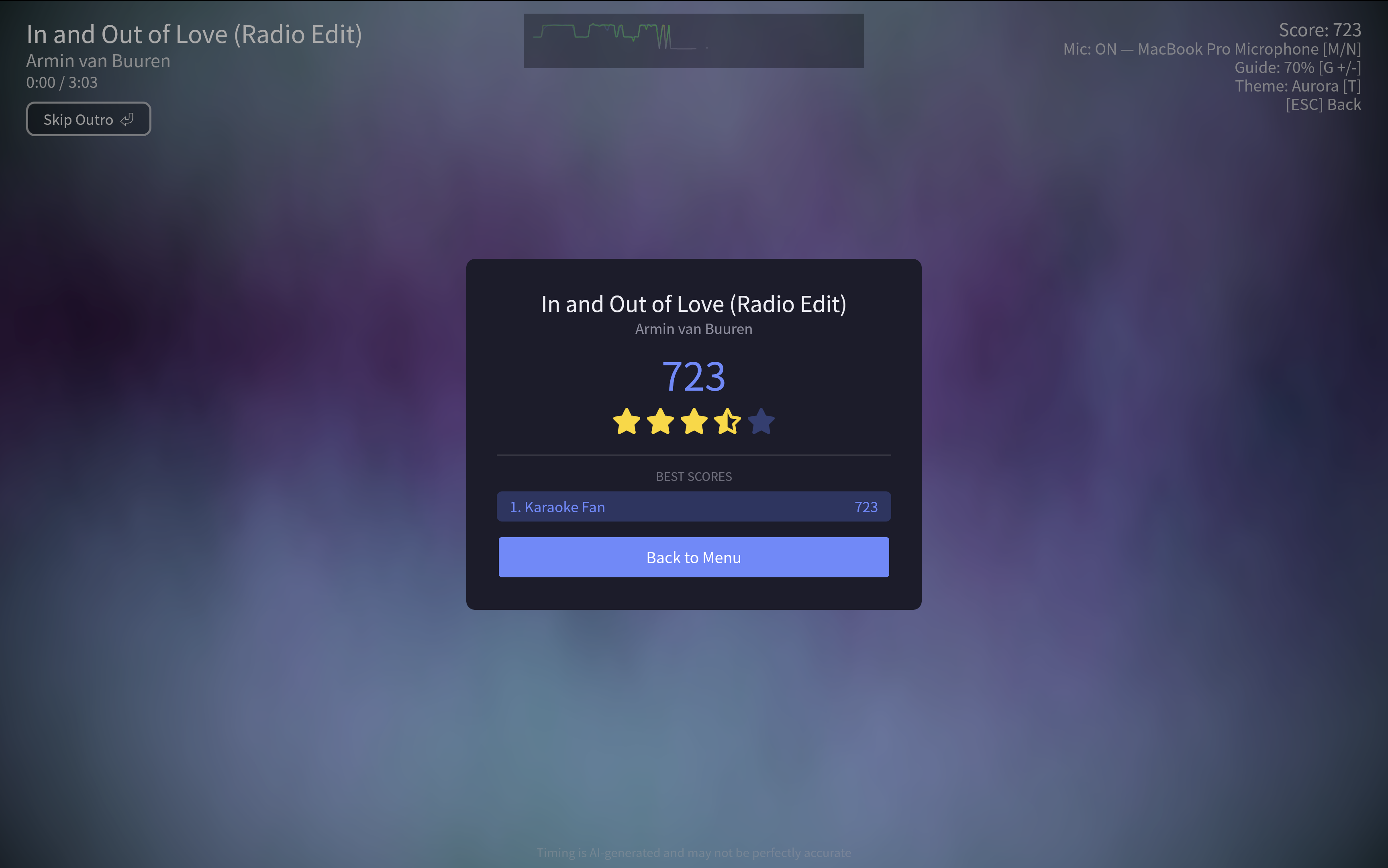
At the end of each song, you receive a star rating based on your overall pitch accuracy. Ratings are saved to your profile’s scoreboard.
Results
The results screen appears at the end of a song whenever your score is above 0. If an active profile is set, the score is saved to the leaderboard.
Microphone Selection
- Press
Mto toggle the microphone on/off - Press
Nto cycle through available microphones - Press
Rto toggle mic monitoring during playback - Select a preferred microphone in Settings → General
- The active microphone is shown in the HUD during playback
Latency Calibration
Use Settings → General → Mic latency to compensate for speaker-to-microphone delay. The test plays a short beep, listens for it through the selected microphone, and saves mic_latency_compensation_sec. You can also adjust the value manually if your room or audio device needs extra tuning.
Per-Song Scoreboards
Each song maintains a scoreboard of past performances. Scores are tracked per profile, so multiple singers can compete on the same songs.
Backgrounds
Nightingale offers a deep selection of background themes during playback, cycled with the T key.
10 GPU Shader Backgrounds
Ten backgrounds are rendered in real-time using GPU shaders (GLSL):
- Plasma — flowing colorful plasma effect
- Waves — undulating wave patterns
- Nebula — cosmic nebula clouds
- Starfield — deep space star field
- Sonar — radial pulse sweeps
- Voronoi — animated cellular tessellation
- Vortex — swirling color tunnels
- Metaballs — fluid blob morphs
- Spectrum — frequency-bar visualizer
- Oscilloscope — waveform line trace
These run at full frame rate and adapt to your display resolution.
Shaders are audio-reactive when the microphone is enabled: a real-time analyzer drives shared uniforms (level, low/mid/high band energy, beat impulses) so louder vocals push the visuals harder. With the mic off, the shaders animate on their own time-based clock.
Pixabay Video Backgrounds
Pre-downloaded video backgrounds from Pixabay in 5 flavors, cycled with the F key:
- Nature — forests, mountains, rivers
- Underwater — ocean, coral, sea life
- Space — galaxies, nebulae, Earth from orbit
- City — urban skylines, night cityscapes
- Countryside — rolling fields, sunsets
Videos are pre-downloaded during setup so they’re ready instantly.
Source Video Playback
When playing a video file (.mp4, .mkv, etc.), the source video plays as the background automatically. If the source is not directly playable, Nightingale generates a compatible playback version in cache.
Source video background timing follows playback tempo, so visual sync stays consistent when tempo is adjusted.
Profiles
Nightingale supports multiple player profiles for tracking scores across different singers.
Creating Profiles
Create a new profile from the main menu. Each profile stores:
- Player name
- Per-song pitch scores and star ratings
- Score history
Switching Profiles
Switch between profiles from the sidebar. The active profile is shown in the UI and all new scores are saved to it.
Score Tracking
Scores are stored in profiles.json inside your selected data folder (default ~/.nightingale/profiles.json, or <your-data-folder>/profiles.json if you picked a custom location during setup). Each profile maintains separate scoreboards for every song, so multiple singers can compete on the same library.
Configuration
Nightingale stores app settings in ~/.nightingale/config.json.
Data Storage
During setup, you can choose a custom data folder. Most runtime data lives in that selected folder. In v0.8.0, cache, videos, models, and vendor tools can also move into separate folders from the settings page. config.json and nightingale.log remain in the default ~/.nightingale path.
Typical selected data folder layout:
<selected-data-folder>/
├── cache/               # Stems, transcripts, lyrics, shifted variants, covers, playable videos
├── songs.db             # Song library and analysis metadata (SQLite)
├── profiles.json        # Player profiles and scores
├── videos/              # Cached Pixabay video backgrounds
├── sounds/              # Sound effects
├── vendor/
│   ├── ffmpeg           # Downloaded ffmpeg binary
│   ├── uv               # Downloaded uv binary
│   ├── python/          # Python 3.10 installed via uv
│   ├── venv/            # Virtual environment with ML packages
│   ├── analyzer/        # Extracted analyzer Python scripts
│   └── .ready           # Marker indicating setup is complete
└── models/
    ├── torch/           # Demucs model cache
    ├── huggingface/     # WhisperX model cache
    └── audio_separator/ # UVR Karaoke model cache
Video Backgrounds
Pixabay video backgrounds use the Pixabay API. In development, create a .env file at the project root with:
PIXABAY_API_KEY=your_key_here
Theme
Toggle between dark and light themes from the sidebar. The theme preference is saved in the config.

Notable Settings
config.json is written by the app — you’ll usually change these from Settings rather than by editing the file directly. Settings are grouped into General, Playback, and Analysis tabs. A few keys worth knowing:
| Key | Purpose |
|---|---|
asr_engine | Selects the transcription engine. whisper (default) or parakeet. See Lyrics & Transcription. |
align_backend | Forced-alignment backend. whisperx (default, Python Viterbi), ctc (torchaudio forced_align C++/CUDA kernel; faster), or qwen (Qwen3-ForcedAligner-0.6B; 11 languages incl. CJK, runs on CUDA/MPS/CPU). All non-default backends fall back to WhisperX on error or unsupported input. See Lyrics & Transcription. |
separator | Stem separation model: karaoke (UVR, default) or demucs. |
vocal_detection_threshold_pct | RMS threshold (fraction of the loudest window, 0.0–1.0, default 0.15) that marks where vocals start and end. Lower values keep more quiet intros/outros and soft singing; higher values trim more silence. Shown in Settings as Vocal detection sensitivity (0–60%). |
whisper_model | Whisper model size: large-v3 (default), large-v3-turbo, medium, small, base, tiny. Ignored when asr_engine is parakeet. |
beam_size / batch_size | Decoder beam width and batch size for Whisper. Higher values are more accurate but slower and use more VRAM. |
mic_monitor_gain | Live monitor gain when mic monitoring is on. Range 0.0–2.0 (slider shown as 0–200%). Configs from older builds that used mic_mirror_gain are read transparently and migrated on next save. |
mic_latency_compensation_sec | Speaker-to-mic latency compensation for pitch scoring. Tune manually or use the Settings latency test. |
mic_active / mic_monitoring / preferred_mic | Microphone state and the device chosen for scoring + monitoring. Older mic_mirroring configs are accepted and migrated on next save. |
playback_mode | classic replaces the menu with playback; session opens playback in a dedicated desktop window or browser tab so the menu can manage the queue. |
lyrics_vertical_position / lyrics_horizontal_position | Playback lyrics placement. Vertical: top, center, bottom; horizontal: left, center, right. |
lyrics_scale / pitch_graph_scale | Independent playback display scales from 0.5 to 2.5 (50–250%, default 1.0). |
auto_analyze | When true, scans automatically queue every unanalyzed song after they finish. |
cache_paths | Optional per-folder overrides for songs, videos, models, and vendor. Use Settings to move them so existing contents migrate safely. |
last_video_flavor | Index of the last-used Pixabay video flavor (Nature, Underwater, Space, City, Countryside). |
last_theme | Index of the last-used playback background (shaders → video → source). |
language_overrides | Per-song forced ASR language, keyed by song hash. Set this from the song-list controls. |
data_path | Selected data folder root. Set during first-run setup. |
Self-Hosted Web Mode
Run Nightingale on a Linux box at home, then open it from phones, laptops, tablets, or TVs on your LAN.
You get one local URL:
http://<hostname>.local
Use plain HTTP for browsing, playback, queues, and most features. Use HTTPS if you want browser features like microphone capture, fullscreen, and clipboard (unless they work via http).
Quick install
On the Linux host:
curl -fsSL https://raw.githubusercontent.com/rzru/nightingale/master/scripts/install.sh | bash
When system changes start, the installer shows the first sudo command, asks for confirmation, then prints each admin command before it runs.
When it finishes, open the URL shown by the installer, usually:
http://<hostname>.local
The installer is safe to re-run. Re-running upgrades Nightingale and keeps your data.
What the installer does
It sets up:
nightingale.service— runs the Nightingale web server.caddy.service— serves Nightingale on HTTP and HTTPS.avahi-daemon— makes<hostname>.localwork on your LAN.- A system user named
nightingale(optional). - A default data folder at
/var/lib/nightingale.
Your music folder is not configured by the installer. You choose it in the app.
Requirements
- Linux host with
systemd. - Root access with
sudo. - Internet access to download Nightingale and setup dependencies.
- Ports
80,443, and5353/udpallowed on your LAN if you use a firewall. - Optional: NVIDIA GPU for faster analysis.
The installer can install caddy and avahi-daemon with apt, dnf, pacman, zypper, or apk. If your distro uses something else, install those packages first, then run the installer.
First launch
- Open
http://<hostname>.localfrom any device on your LAN. - Follow setup in the browser.
- Choose a data folder with enough space for models, cache, videos, and analysis files.
- Wait while Nightingale downloads
ffmpeg, Python, PyTorch, WhisperX, Demucs, UVR models, and other dependencies. - Open the library menu, choose a music folder, and scan your songs.
If your songs are on the server at /srv/music/karaoke, enter that full path in the app.
Microphone support and HTTPS
Browsers block microphone capture on normal HTTP pages unless the page is localhost. Since <hostname>.local is not treated as secure, mic capture needs HTTPS. This can vary per-browser and per-setup, if mic capture works for you via HTTP-connection, feel free to skip this step (If you still want to use it via HTTP you must config you browser).
Nightingale already serves HTTPS at:
https://<hostname>.local
Before browsers trust it, install Nightingale’s local certificate once on each device.
Download the certificate from your LAN:
curl -O http://<hostname>.local/root.crt
Then trust it:
- macOS — open
root.crt, add it to Keychain, set it to Always Trust. - iPhone / iPad — send
root.crtto the device, install the profile, then enable it in Settings → General → About → Certificate Trust Settings. - Windows — double-click
root.crt, install it to Trusted Root Certification Authorities. - Android — install it as a CA certificate in security settings. Some browsers may need their own certificate import too.
- Linux — copy it to
/usr/local/share/ca-certificates/nightingale.crt, runsudo update-ca-certificates, and import it separately in Firefox if needed.
After that, use https://<hostname>.local for microphone scoring.
Firewall
If your firewall is active, open these inbound LAN ports:
| Port | Protocol | Used for |
|---|---|---|
80 | TCP | HTTP app access |
443 | TCP | HTTPS app access and microphone support |
5353 | UDP | .local discovery with Avahi / mDNS |
Ubuntu / Debian / Raspberry Pi OS with ufw:
sudo ufw allow 80/tcp   comment 'nightingale http'
sudo ufw allow 443/tcp  comment 'nightingale https'
sudo ufw allow 5353/udp comment 'nightingale mdns'
sudo ufw reload
Fedora / RHEL / openSUSE with firewalld:
sudo firewall-cmd --permanent --add-service=http
sudo firewall-cmd --permanent --add-service=https
sudo firewall-cmd --permanent --add-service=mdns
sudo firewall-cmd --reload
If your firewall is inactive, you do not need to do anything.
Music folder permissions
Nightingale runs as the nightingale user by default, or any other user you prompt during the setup. That user needs read access to your songs.
For a common /srv/music/karaoke folder:
sudo setfacl -m u:nightingale:rx /srv/music
sudo setfacl -R -m u:nightingale:rx /srv/music/karaoke
You can also grant access with normal Unix groups if that fits your setup better.
Updating
Run the installer again:
curl -fsSL https://raw.githubusercontent.com/rzru/nightingale/master/scripts/install.sh | bash
This replaces the server binary and restarts Nightingale. Your config, library, cache, and music stay in place.
To install a specific version:
curl -fsSL https://raw.githubusercontent.com/rzru/nightingale/master/scripts/install.sh | NIGHTINGALE_VERSION=v1.2.0 bash
Useful commands
systemctl status nightingale caddy
journalctl -u nightingale -f
journalctl -u caddy -f
sudo systemctl restart nightingale
Change the local name
To use a friendlier URL like nightingale.local, follow the setup prompts or use an environmental variable:
curl -fsSL https://raw.githubusercontent.com/rzru/nightingale/master/scripts/install.sh | NIGHTINGALE_HOSTNAME=nightingale.local bash
Then open:
http://nightingale.local
If your router supports DHCP reservations, reserve a stable IP for the host too.
Run with Docker
Prefer containers? You can skip the systemd / Caddy / Avahi installer entirely and run the server in Docker (CPU or CUDA/GPU). See Docker.
Build from source
Use this if you are testing local changes or no release exists yet:
git clone https://github.com/rzru/nightingale.git
cd nightingale
bash scripts/install.sh --from-source
You need cargo, node, and pnpm available in your user shell.
Advanced installer options
Most users do not need these.
| Variable | Default | Use |
|---|---|---|
NIGHTINGALE_VERSION | latest | Install a specific GitHub Release tag. |
NIGHTINGALE_REPO | rzru/nightingale | Install from another repo. |
NIGHTINGALE_HOSTNAME | $(hostname -s).local | Publish a different .local name. |
NIGHTINGALE_USER | nightingale | Run service as another system user. |
NIGHTINGALE_DATA_DIR | /var/lib/nightingale | Bootstrap config and service data path. |
NIGHTINGALE_FORCE_AVAHI_HOSTNAME | unset | Overwrite an existing Avahi hostname override. |
NIGHTINGALE_FORCE_CADDYFILE | unset | Let installer replace an existing Caddyfile after backing it up. |
The installer tries not to overwrite your existing Caddy or Avahi setup. If it detects a conflict, it stops and prints what to fix.
Uninstall
sudo systemctl disable --now nightingale
sudo rm /etc/systemd/system/nightingale.service
sudo systemctl daemon-reload
sudo rm -f /usr/local/bin/nightingale /usr/local/bin/nightingale.etag /usr/local/bin/nightingale.version
sudo rm -f /etc/avahi/services/nightingale.service
sudo systemctl restart avahi-daemon
If the installer created Nightingale’s Caddy snippet, remove it and reload Caddy:
sudo rm -f /etc/caddy/Caddyfile.d/nightingale.caddy
sudo systemctl reload caddy
Data is kept by default. Remove it only if you are done with it:
sudo rm -rf /var/lib/nightingale
sudo userdel nightingale
Docker
Run the self-hosted web server in a container instead of installing it with scripts/install.sh. This skips the systemd / Caddy / Avahi setup and just runs the server binary, so you bring your own networking (port mapping or a reverse proxy).
Two image flavors are built from the same docker/Dockerfile:
- CPU —
debian:bookworm-slimbase. Works everywhere. - CUDA / GPU —
nvidia/cudabase. Needs the NVIDIA Container Toolkit on the host for faster analysis.
The heavy ML stack (ffmpeg, uv, Python 3.10, PyTorch, WhisperX, Demucs, UVR models, …) is not baked into the image. It downloads on first launch into the mounted data volume, exactly like a bare-metal install.
Prebuilt images
Each release publishes images to Docker Hub and GHCR, so you don’t have to build locally:
| Flavor | Docker Hub | GHCR |
|---|---|---|
| CPU | razzaru/nightingale:latest | ghcr.io/rzru/nightingale:latest |
| CUDA / GPU | razzaru/nightingale:latest-cuda | ghcr.io/rzru/nightingale:latest-cuda |
Versioned tags (:1.2.0, :1.2.0-cuda, …) are published alongside latest.
docker pull razzaru/nightingale:latest
Quick start (Docker Compose)
Copy and paste this on your NAS or Docker host. Change /path/to/your/music to the host path containing your music library:
mkdir -p nightingale && cd nightingale

cat > compose.yaml <<'YAML'
services:
  nightingale:
    image: razzaru/nightingale:latest
    container_name: nightingale
    restart: unless-stopped
    ports:
      - "64448:8080"
    volumes:
      - nightingale-data:/data
      - /path/to/your/music:/songs:ro

volumes:
  nightingale-data:
YAML

docker compose pull
docker compose up -d
Then open http://<host>:64448 and follow the setup wizard. Port 64448 spells NIGHT on a phone keypad and avoids common self-hosted app defaults. The CPU image supports both AMD64 and ARM64 NAS devices. To use GHCR instead, change image to ghcr.io/rzru/nightingale:latest.
If you already cloned the repository and want to build locally, edit the music path in docker/compose.yaml, then run:
docker compose -f docker/compose.yaml up -d --build
Quick start (docker run)
docker build -f docker/Dockerfile -t nightingale .

docker run -d \
  --name nightingale \
  -p 64448:8080 \
  -v nightingale-data:/data \
  -v /path/to/your/music:/songs:ro \
  nightingale
First launch
- Open
http://<host>:64448. - Continue through the setup wizard. The data folder is fixed to the
/datavolume (the container setsNIGHTINGALE_DATA_PATH=/data), so the wizard skips the data-folder step entirely. - Wait while Nightingale downloads ffmpeg, Python, PyTorch, WhisperX, Demucs, and the UVR models into
/data/vendor. This is several GB and only happens once — as long as you keep the volume. - Your library is already configured: the image pins it to
/songs, so the folder you mounted is scanned on startup. Add or change songs on the host, then hit Rescan in the sidebar.
Configuring the music library
A browser file picker can’t hand the server an absolute filesystem path, so instead of picking a folder in the UI the library is set by convention: the image pins it to /songs (via a default NIGHTINGALE_LIBRARY_PATH=/songs). Just mount your host music there:
-v /path/to/your/music:/songs:ro
Nightingale configures a folder library source at that path on every startup and rescans if it changed, so your run/compose file is the single source of truth for the library. While it’s pinned, the in-app source buttons (folder / Plex / Jellyfin / Navidrome) are hidden.
To mount your music somewhere else, override the path (-e NIGHTINGALE_LIBRARY_PATH=/music -v /path/to/music:/music:ro). To use a remote source (Plex, Jellyfin, or Navidrome) instead, set it empty (-e NIGHTINGALE_LIBRARY_PATH=) and connect from the sidebar as usual. For a LAN-only Plex server, ensure the container can reach its PMS URL (for example http://192.168.1.20:32400); the advanced PMS URL + token flow then operates directly against that server without requiring plex.tv after connection.
GPU
Install the NVIDIA Container Toolkit on the host, then build the CUDA image and run it with GPU access.
docker build -f docker/Dockerfile \
  --build-arg RUNTIME_BASE=nvidia/cuda:12.6.2-runtime-ubuntu24.04 \
  -t nightingale:cuda .

docker run -d \
  --name nightingale-gpu \
  --gpus all \
  -p 64448:8080 \
  -v nightingale-data:/data \
  -v /path/to/your/music:/songs:ro \
  nightingale:cuda
Or with Compose:
docker compose -f docker/compose.yaml --profile gpu up -d nightingale-gpu
Nightingale detects the GPU by running nvidia-smi inside the container (injected by the Container Toolkit) and picks a matching PyTorch CUDA wheel at bootstrap. The PyTorch wheels bundle their own CUDA runtime, so the only host requirement is an NVIDIA driver new enough for the selected CUDA version (12.6 by default).
If nvidia-smi isn’t available in the container, Nightingale falls back to CPU-only PyTorch — analysis still works, just slower.
Persistence
Everything lives under the single /data volume: config.json, songs.db, cache, videos, models, and the vendor/ toolchain. $HOME is also set to /data so uv / pip / Hugging Face caches persist there too.
Keep the nightingale-data volume across upgrades. Deleting it forces the multi-GB dependency download to run again.
Microphone and HTTPS
Browsers only allow microphone capture in a secure context. http://<host>:64448 is not secure, so mic scoring is disabled there — but browsing, playback, queues, and analysis all work fine over plain HTTP.
To enable mic scoring, terminate TLS in front of the container. Two common options:
- Put a reverse proxy (Caddy, Traefik, nginx) in front and serve HTTPS with a trusted certificate.
- Run with
--network hostand front the container with a host-level Caddy, mirroring the bare-metal self-hosted setup.
Updating
Pull the current cloud image and recreate the container:
cd nightingale
docker compose pull
docker compose up -d
For a local checkout using docker/compose.yaml, rebuild instead:
docker compose -f docker/compose.yaml up -d --build
Your config, library, cache, and downloaded dependencies stay on the /data volume. There is no in-app updater in container mode — you update by rebuilding or pulling a new image.
Music folder permissions
The container runs as a non-root nightingale user. Mount your music read-only (:ro) and make sure it’s world-readable, or adjust ownership so the container user can read it.
Environment variables
| Variable | Default | Use |
|---|---|---|
NIGHTINGALE_BIND | 0.0.0.0:8080 | Address the server listens on inside the container. |
NIGHTINGALE_DATA_PATH | /data | Data + config directory (mount this as a volume). Fixed, so the setup wizard skips the data-folder step. |
NIGHTINGALE_LIBRARY_PATH | /songs | Pin the library to a folder at this in-container path (mount your music here). Scanned on startup; the in-app source pickers are hidden while it’s set. Set empty to use in-app / remote sources instead. |
Build-time:
| Build arg | Default | Use |
|---|---|---|
RUNTIME_BASE | debian:bookworm-slim | Set to an nvidia/cuda:*-runtime-* image for GPU support. |
PIXABAY_API_KEY | empty | Baked into the binary to enable Pixabay video backgrounds. |
Building from Source
Prerequisites
| Tool | Version |
|---|---|
| Rust | 1.85+ (workspace uses edition 2024) |
| Node.js | 20+ |
| pnpm | latest |
| Windows ASIO support | LLVM/Clang with LIBCLANG_PATH, Visual Studio C++ Build Tools, and the Steinberg ASIO SDK (set CPAL_ASIO_DIR) |
| Linux only | libwebkit2gtk-4.1-dev, libssl-dev, libayatana-appindicator3-dev, librsvg2-dev, libxdo-dev, libasound2-dev |
Development
git clone <repo-url> nightingale
cd nightingale
cargo desktop dev
This starts the Tauri development server with hot-reload for the React frontend.
Release Build
cargo desktop build
Builds the production app bundle for your current platform using Tauri’s bundler.
Re-running Setup
If something goes wrong with the vendor environment, you can force a fresh setup from the sidebar actions menu inside the app by selecting Re-run Setup.
Troubleshooting
First Launch Takes Too Long
The initial setup downloads Python, PyTorch, ML models, and video backgrounds. On a slow connection this can take 10–20 minutes. Subsequent launches skip setup entirely.
Analysis Fails
If song analysis fails:
- Check the error message in the UI for details
- Ensure you have enough disk space (~5 GB for models and cache)
- Try selecting Re-run Setup from the sidebar actions menu to reset the vendor environment
- GPU memory errors may occur with very long songs — CPU fallback will be used automatically
No Sound
- Verify your audio output device is correctly configured
- Check that the audio file format is supported (
.mp3,.flac,.ogg,.opus,.wav,.m4a,.aac,.wma) - Try a different audio file to rule out file-specific issues
Microphone Not Detected
- Press
Nto cycle through available microphones - Press
Rto toggle mic monitoring if you want live monitor audio - Ensure microphone permissions are granted to the application
- On macOS, check System Settings > Privacy & Security > Microphone
GPU Acceleration Not Working
The analyzer auto-detects the best backend:
- NVIDIA GPU: Requires CUDA-compatible drivers
- Apple Silicon: Uses MPS backend (some operations fall back to CPU)
- CPU: Always works as a fallback
Check the setup progress screen for which backend was detected.
Updates
The auto-updater runs on macOS and Windows only — Linux ships without it. If you’re on Linux and the Update dialog says “Auto-update isn’t supported on Linux”, that’s expected. Click Open GitHub Releases to grab the new .deb or .rpm and install it the normal way for your distro.
If the Update dialog reports a problem on macOS or Windows:
- Stuck on “Checking for updates…” — the update server couldn’t be reached. Confirm you have a working internet connection and that GitHub is reachable; the manifest is fetched from
github.com/rzru/nightingale/releases/latest. If the dialog shows a Wi-Fi-off icon, you’re offline. - “Couldn’t reach the update server” / network error — same cause as above. Click Retry once your connection is back, or download the new build manually from the Releases page.
- “Signature error” — the downloaded bundle didn’t match the public key baked into the app. This usually means you’re running an unofficial build. Re-download Nightingale from the Releases page and try again.
Reset Everything
To completely reset Nightingale, delete your selected data directory. If you use the default location:
rm -rf ~/.nightingale
If you use a custom data folder, delete that folder instead, then relaunch and run setup again.