Getting Started
Download
| Platform | Format | Architectures |
|---|---|---|
| Linux | .deb, .rpm | x86_64, ARM (arm64) |
| macOS | .dmg | Apple Silicon, Intel |
| Windows | Installer .exe, .msi | x86_64 |
Download the latest version from the Releases page.
Supported audio formats: .mp3, .flac, .ogg, .opus, .wav, .m4a, .aac, .wma.
Supported video formats: .mp4, .mkv, .avi, .webm, .mov, .m4v.
UltraStar Deluxe songs (.usdx, plus .txt files whose contents look like USDX) are also picked up automatically and bypass the analyzer pipeline entirely. See UltraStar Deluxe for the supported tags and folder layout.
macOS: Removing the Quarantine Flag
macOS automatically adds a quarantine attribute to files downloaded from the internet. Since Nightingale is not signed with an Apple Developer ID, Gatekeeper will block it with a message like “app is damaged and can’t be opened” or “Apple cannot check it for malicious software”.
To fix this, remove the quarantine attribute after moving the Nightingale.app to Applications:
xattr -cr /Applications/Nightingale.app
This tells macOS to clear (-c) all extended attributes recursively (-r) from the app bundle, which removes the com.apple.quarantine flag that triggers Gatekeeper. The app itself is safe — it’s just not code-signed.
First Launch
On first launch, Nightingale will guide you through setup:
- Choose data folder — select where cache, models, videos, vendor tools, and the library database are stored. After setup, Settings can split cache, videos, models, and vendor tools into separate folders.
- Downloads ffmpeg — needed for audio/video processing
- Downloads uv — Python package manager
- Installs Python 3.10 — via uv, isolated from your system Python
- Creates virtual environment — with PyTorch, WhisperX, Demucs, and UVR models
- Downloads ML models — stem separation and transcription models
- Pre-downloads video backgrounds — Pixabay videos for the first session
This process takes a few minutes and shows a progress screen. After setup completes, Nightingale is ready to use.

Adding Music
When prompted, select your music folder. Nightingale scans it for supported audio and video files. You can change this folder later from the sidebar actions menu.
Browsing and Playing Songs
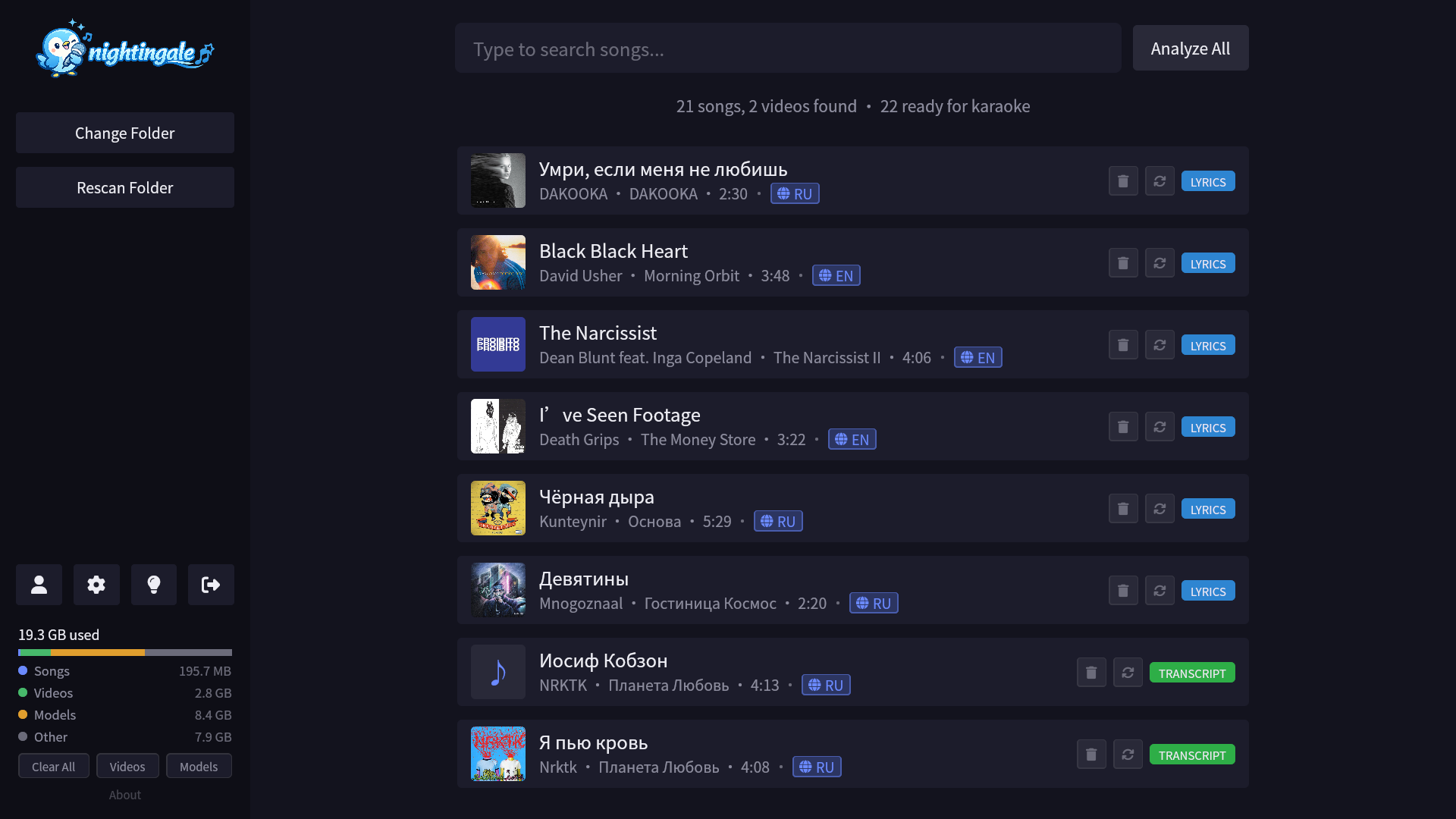
Use the song-list toolbar to switch between a compact table and an artwork grid. Search combines with sidebar selections and the toolbar’s analysis-status and lyric-source filters, so you can narrow the library without losing context.
Select a song to open its details sidebar before playback. From there you can review the cover, metadata, and analysis state; adjust key and tempo; edit or provide lyrics; run analysis actions; play immediately; or add the song to the playback queue. Open the queue from the toolbar to see what is next, remove individual songs, start the queue, or clear it.
Choose Settings → Playback → Session mode to open playback in a dedicated desktop window or browser tab while the menu remains available for queue management. The same settings page has a live preview for lyric placement and independent lyric and pitch-graph scaling.
Analysis
Before most songs can be played as karaoke, they need to be analyzed:
- Select a song from the library to open its details sidebar.
- Start analysis from the available action.
- Nightingale separates stems, finds or transcribes lyrics, and aligns their timing.
- Results are cached — subsequent plays are instant.
Timed LRC / Enhanced LRC and UltraStar songs can skip some or all of this pipeline. See Lyrics & Transcription and UltraStar Deluxe.
Use the song-list actions menu to analyze songs, cancel active analysis, refresh metadata, realign lyrics, reanalyze, or clear cached results across the current filtered list. You can also enable Settings → Analysis → Auto-analyze to queue newly discovered unanalyzed songs after each scan. Bulk actions respect the active search, sidebar selection, status filter, and lyric-source filter.
Updating
On macOS and Windows, Nightingale checks for new releases once at launch. When one is available:
- The sidebar avatar grows a small green dot.
- The Update entry in the sidebar dropdown menu also shows the badge and opens a dialog with the version, release date, and notes.
- Click Install & Restart. The signed bundle downloads (with a progress bar), installs, and the app relaunches.
Platform notes:
- macOS: the bundle is replaced in place and the app relaunches.
- Windows: the installer runs in
passivemode — a small progress window appears, the app exits, and it comes back automatically once the install finishes.
Linux
The Linux build ships without the in-app updater. The Update entry is still in the sidebar menu, but instead of fetching a bundle it opens a dialog that explains this and gives you an Open GitHub Releases button. Pick the .deb or .rpm for your distro from the Releases page and install it the usual way.
There is no update badge on the sidebar avatar on Linux.
If the macOS or Windows dialog reports an error, see Troubleshooting → Updates.
Force Re-setup
If something goes wrong with setup or dependencies, open the sidebar actions menu and select Re-run Setup. If you only need to move cache/models/videos/vendor files, use Settings so Nightingale migrates existing contents and avoids stale paths.